Import flight details directly from an ACARS OOOI screen into your logbook. FLYLOG.io automatically reads available flight data and pre-fills the flight form to help you save time and reduce manual entry.
How to Access
Mobile App
Option 1:
Tap the + button to add a new flight → tap the ⚙️ icon in the top-right corner → select Import from ACARS
Option 2:
On the main screen, tap the […] button in the top-right corner → select Import from ACARS
Web App
Option 1:
Tap the + button to add a new flight → tap the ⚙️ Options button at the bottom of the form → select Import from ACARS
Option 2:
From the left menu, select Flights → in the top-right corner tap the […] button → select Import from ACARS
Importing an ACARS Screen
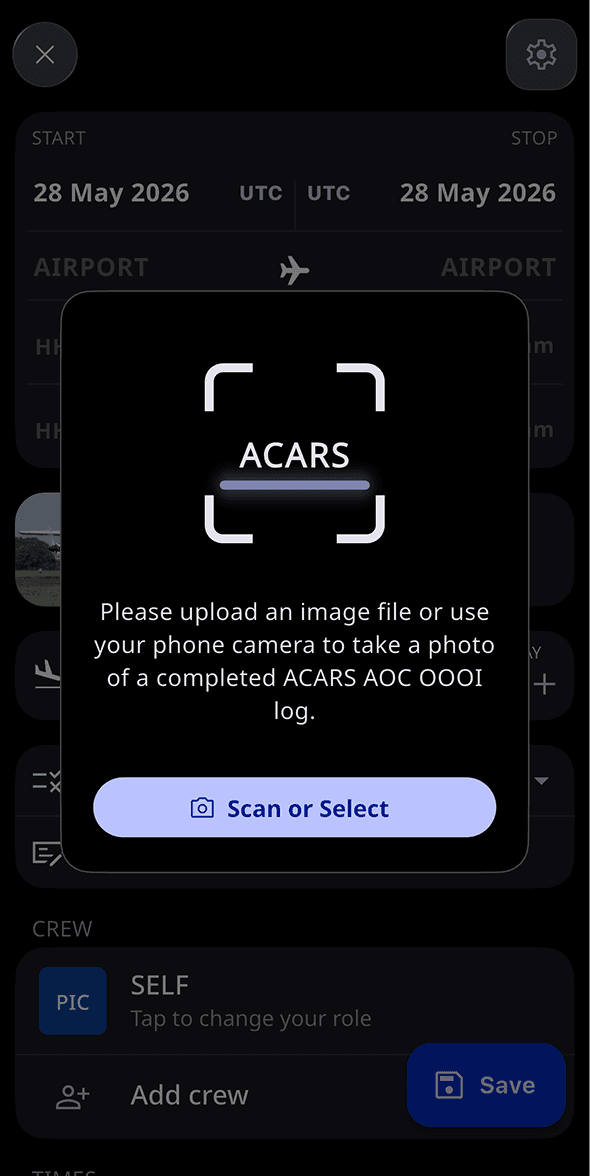
Take a photo of the ACARS screen directly from the app, or upload an existing image from your photo library
FLYLOG.io supports common image formats, including HEIC
The full ACARS screen must be visible in the image
The image should be sharp, clean, and easy to read
Review and Save
After the scan is completed, FLYLOG.io will automatically populate the flight form with all recognized information. Aircraft identification may also be retrieved from the ADS-B network if the flight is not older than 30 days. Please note that ADS-B data may not always be available, as some flights cannot be retrieved from the ADS-B network.
If any information cannot be read or found automatically, you can manually complete or edit the fields before saving the flight.
Once everything looks correct, tap Save to add the flight to your logbook.