Save time and simplify your flight logging by importing flights directly from supported ADS-B networks. Simply enter the aircraft registration or flight number, search for the flight, and import the recorded flight data in seconds.
FLYLOG.io can automatically retrieve details such as route, departure and arrival airports, aircraft, and flight time to help you create accurate logbook entries with minimal manual input.
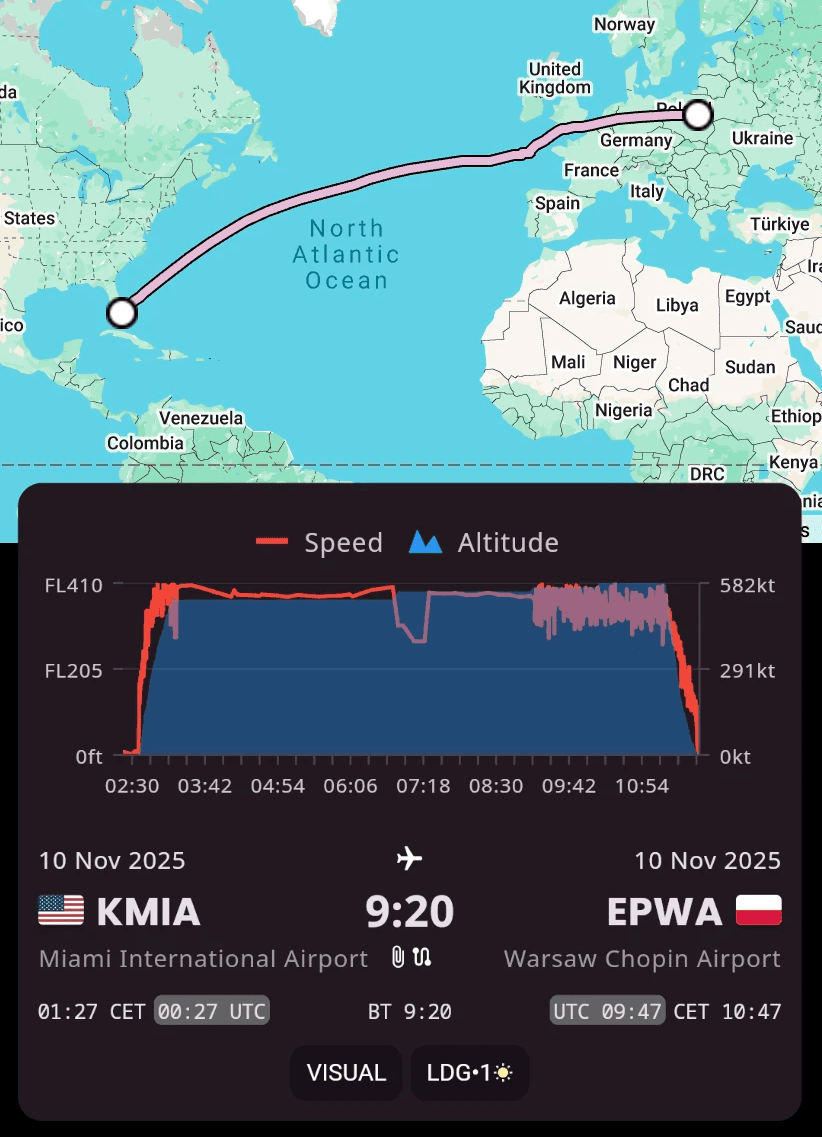
Once imported, you can also replay the recorded ADS-B flight track directly within the flight record for better flight review, training analysis, and documentation.
#1 Mobile App: Tap the + button to add a new flight → then tap the ⚙️ icon in the top-right corner -> select Import from ADS-B
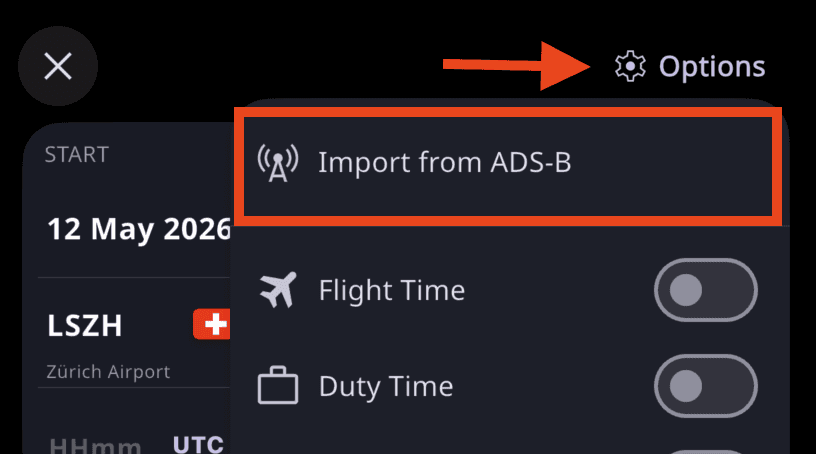
#2 Mobile App: On the main screen, tap the […] button in the top-right corner → select Import from ADS-B
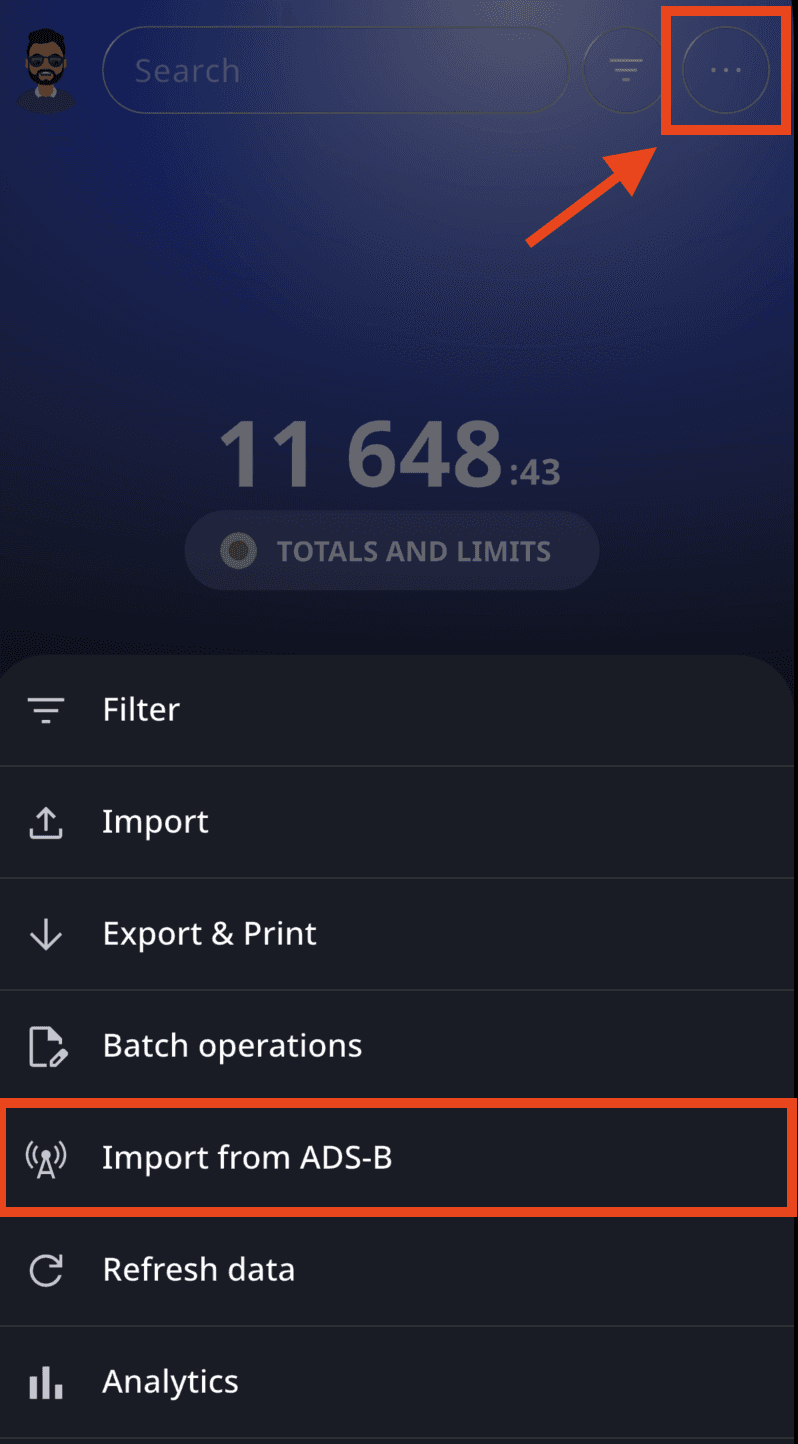
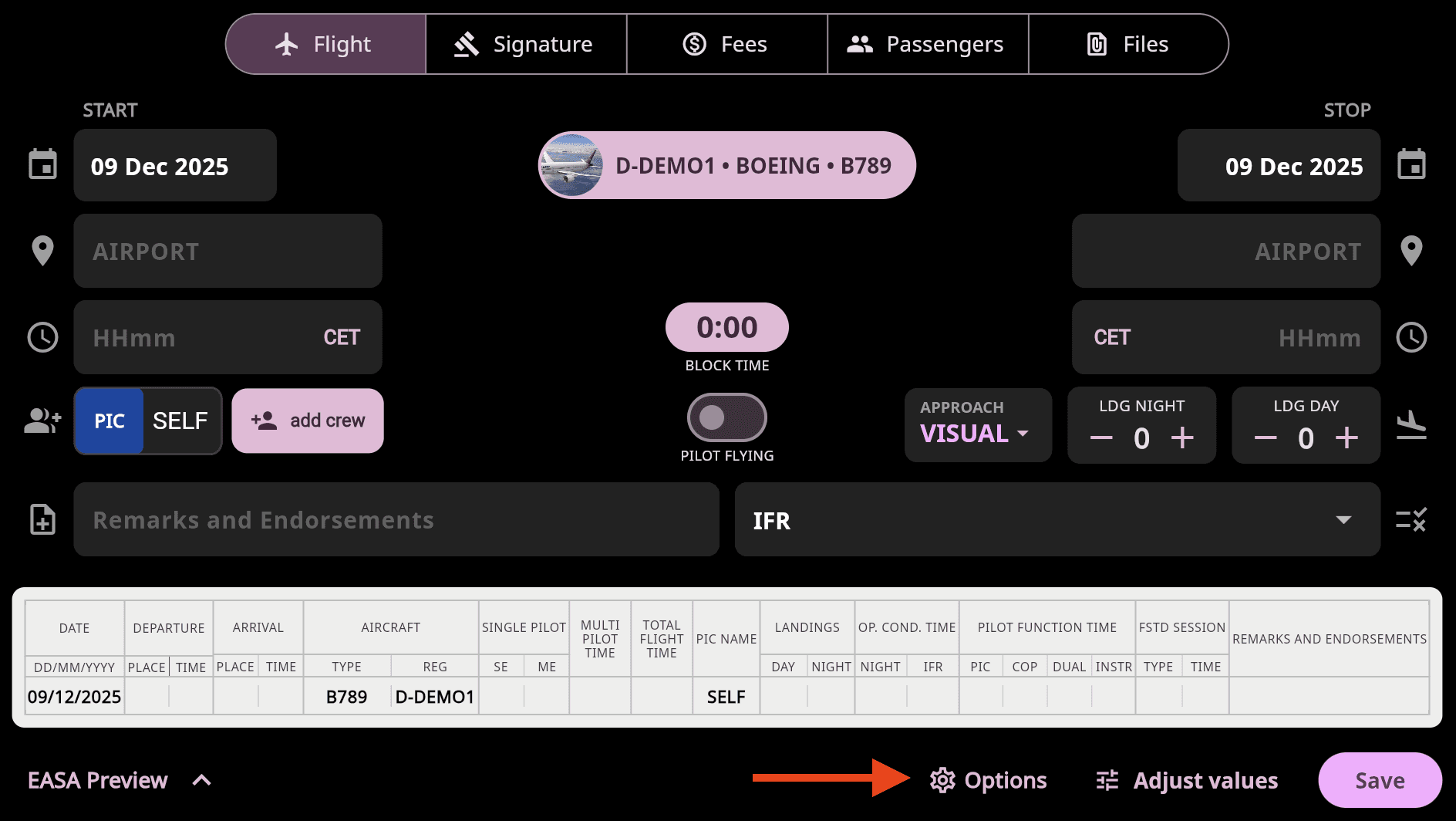
#1 Web App: Tap the + button to add a new flight → tap the ⚙️ Options button at the bottom of the form → select Import from ADS-B
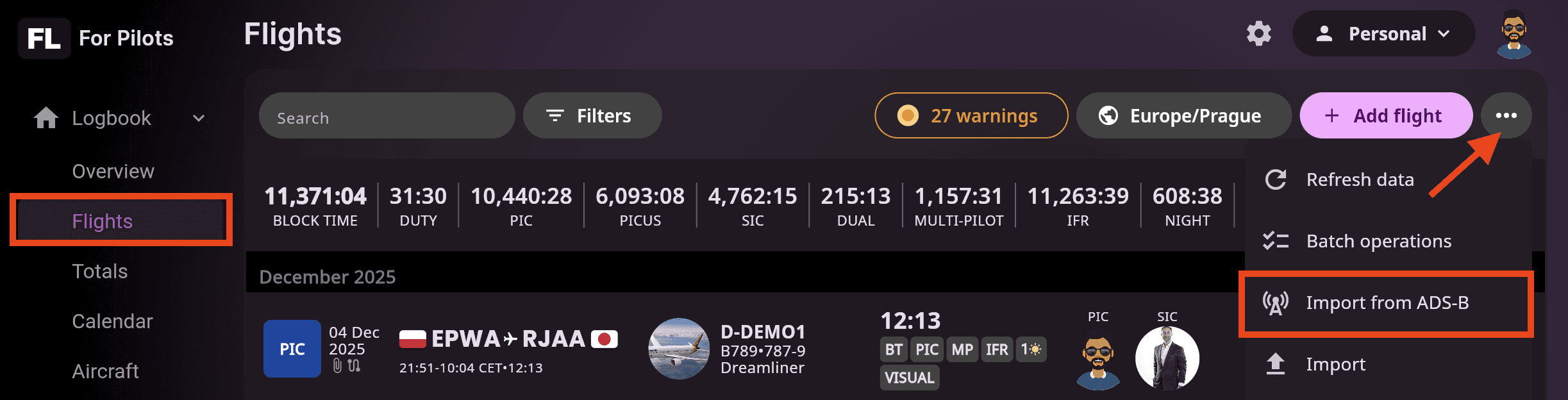
#2 Web App: From the left menu, select Flights → in the top-right corner tap the […] button → select Import from ADS-B
Searching and Importing Flights
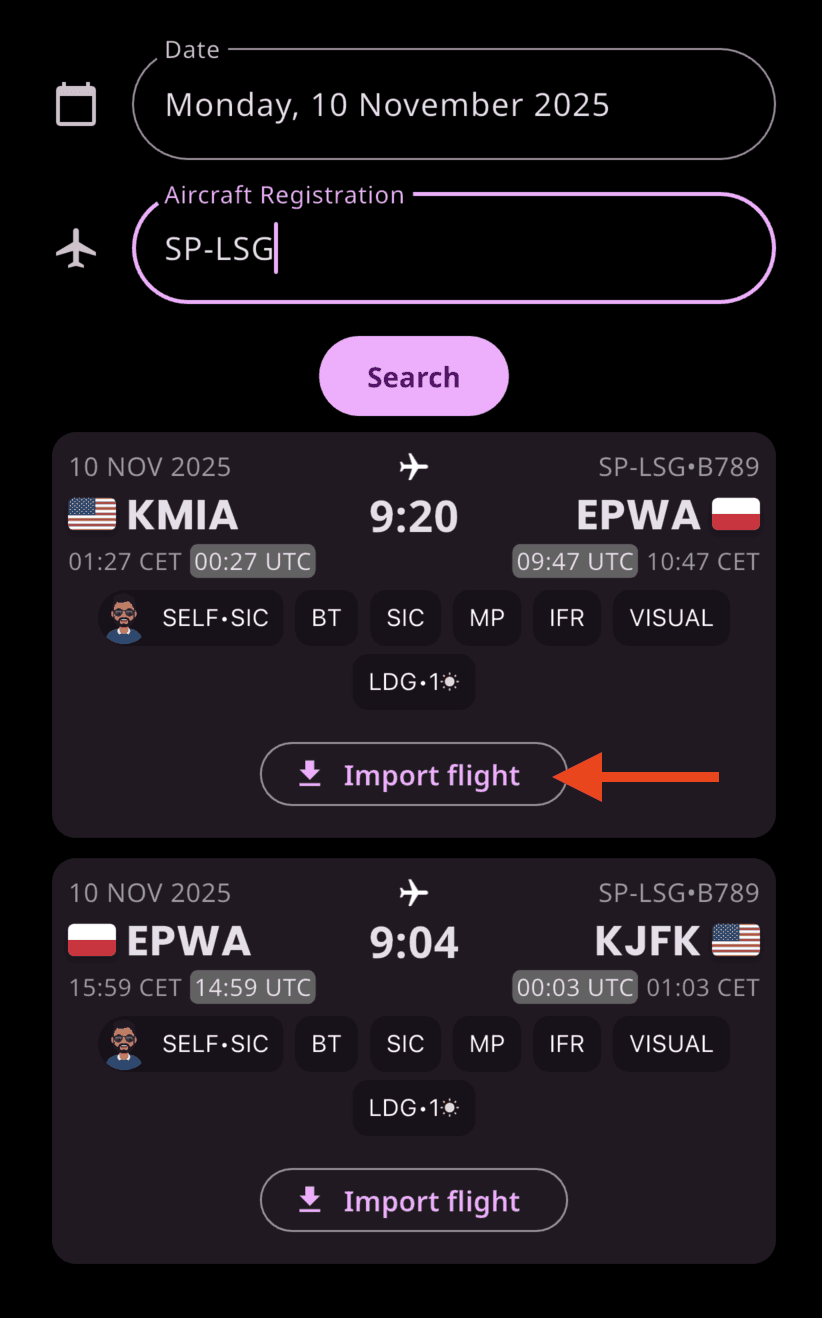
Enter the date and aircraft registration to search for flights on the ADS-B network. The system automatically preloads data from your most recent flight, which you can modify if needed.
Tap Search to display available flights.
Select the desired flight and tap Download.
Review or adjust the imported values.
Finally, tap Save to add the flight to your logbook.
⚠️ Note: The search includes flights from the past 30 days.
Displaying ADS-B Route in a Flight
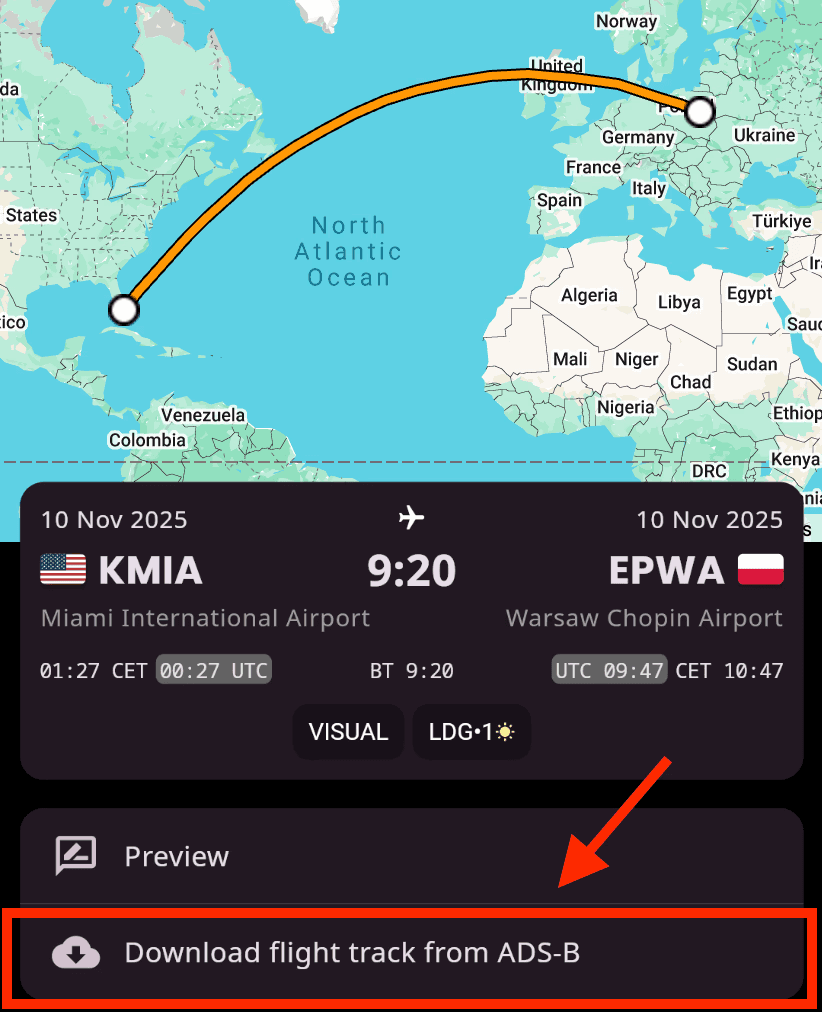
To display the ADS-B route for a flight, tap Download Flight Track on the flight details screen. This will automatically import the GPS data into your logbook.
Once downloaded, the route is saved in your flight record. If you wish to remove it later, open the flight in Adjust mode, scroll to the Files section, and delete the file track.csv.
⚠️ Note: You can download flight tracks without any time limit.