Overview Dashboard
The Overview tab is the operational dashboard of your organization. Open it from Admin → Overview in the left menu. It shows at a glance how your fleet, pilots and bookings are doing, and it is the best place to start your day.
💡 Tip: Dashboard data updates automatically from logged flights and confirmed reservations, so what you see is always current.
Accessing the Dashboard
By default, the dashboard shows data for the current month. Use Add Filter at the top of the screen to change the period (for example last 7 days, last year or a custom date range) or to narrow the data to a specific aircraft, client, crew member, label or flight status. Several filters can be combined, and you can remove them again with one click.
⚠️ What is displayed may vary depending on your organization's setup and the data you record.
The dashboard gives a quick operational summary:
New reservations waiting for confirmation, with Confirm and Cancel in one click
Flights per day for the selected period
Aircraft utilisation: flights, landings, flight time, block time and reservations per aircraft
Airports your aircraft operate from most often
Clients and crew: for clients, the dashboard sums up their spending in the selected period and lets you create an invoice in one click; for crew, you can review flight hours and documents needed for salary preparation.

Working with the Dashboard
Most items are clickable. Click an aircraft, a client or an airport to open its detailed records.
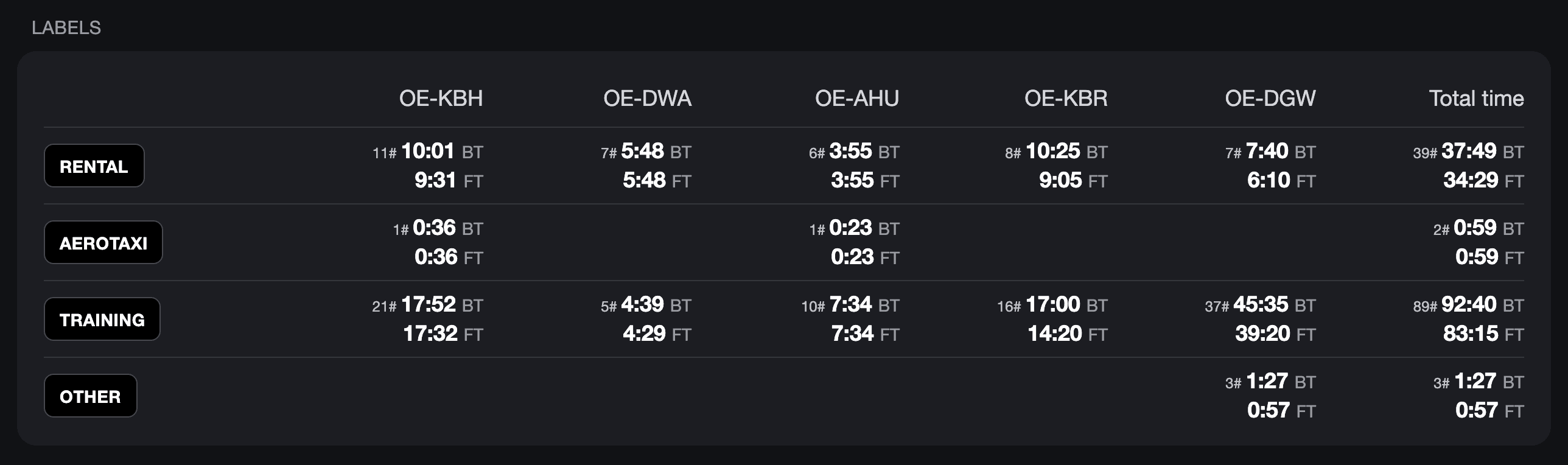
We recommend using Labels. Labels on flights, such as Rental, Training or Aerotaxi, group the statistics by type of operation, so you can see at a glance how many hours each aircraft flew for each purpose. Labels such as Invoiced or Paid mark which financial stage a flight has reached, which makes it easy to spot flights that still need to be invoiced or paid.
💡 Tip: For deeper analysis over longer periods, use Admin → Analytics.