Your Personal Screen
Personal is your own area in the organization: your flight hours and totals, your balance, the aircraft and contacts available to you, and all your reservations and flights with what each one cost you.
Your Personal Screen
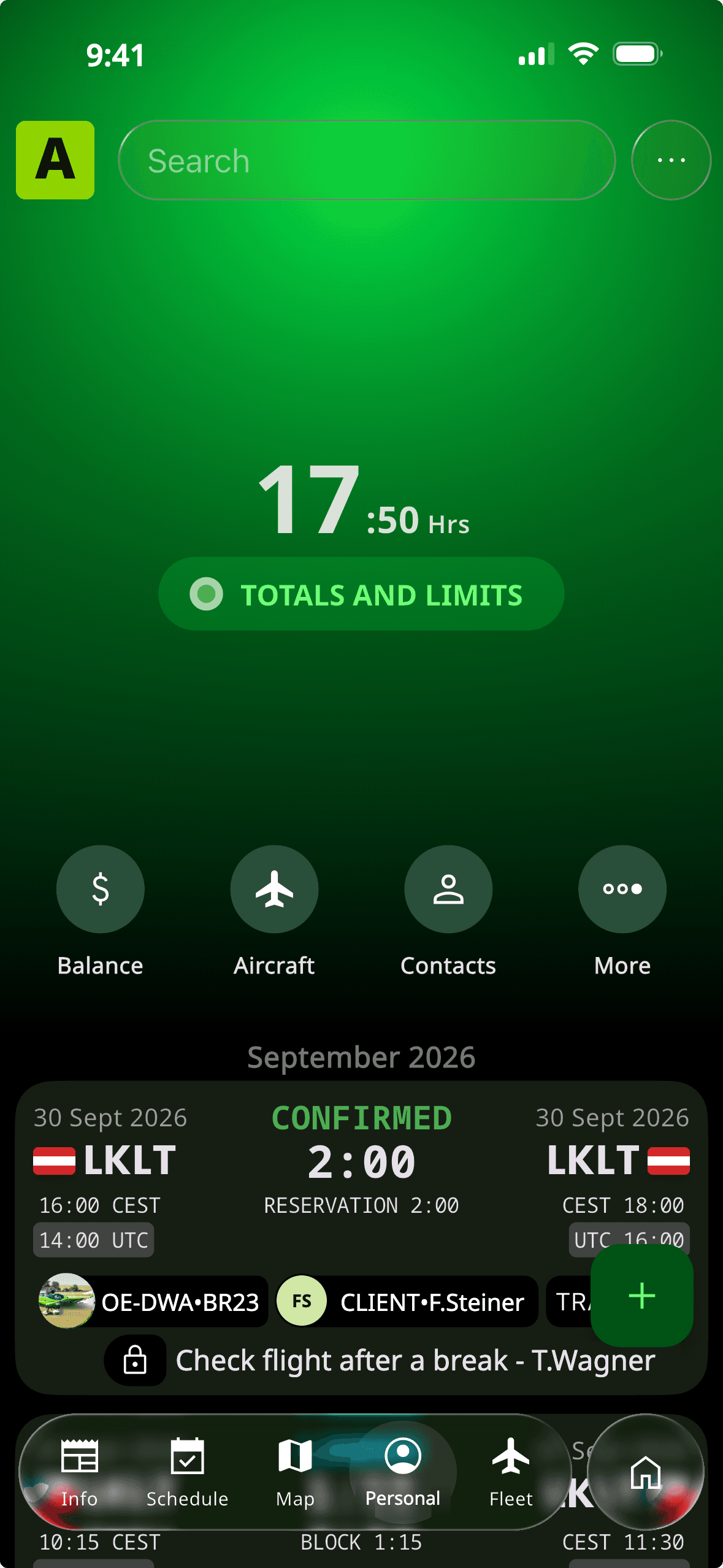
Mobile app: tap Personal. At the top you see your total hours in this organization; tap Totals and limits for the full breakdown. Below are quick buttons for Balance, Aircraft, Contacts and More, and then your reservations and flights month by month, newest first. Use the search field to find a flight, tap a flight to open its details, and tap + to make a new reservation.
Web app: go to Personal → Flights. The totals bar at the top shows reservation time, block time, flight time, PIC and dual time, flights and landings; the list below works the same way as in the mobile app.
Image: Mobile app, Personal screen with totals and flight list, demo account
Totals and Limits
Tap Totals and limits (mobile) or Personal → Totals (web) to see your flying in this organization broken down by aircraft and by type: block and flight time, PIC and dual time, landings and number of flights, for any period you choose. If your organization tracks limits, for example maximum duty or flight time, they are shown here too. These totals count only flights with this organization; your complete logbook is in FLYLOG.io for Pilots.
Flight Statuses
Reservation: your request, waiting for confirmation.
Confirmed: approved; the aircraft is yours for that time.
Landed: the flight took place and the post-flight details are entered.
Cancelled: cancelled by you or the organization.
After Landing
After landing, enter the post-flight details on the flight; see Booking Aircraft.
Flight Track and Personal Logbook
For flights with ADS-B coverage, you can download the flight track from the flight details (button Replay flight track). If you also use FLYLOG.io for Pilots, you can copy each landed flight to your personal logbook with one tap (see Sync with Pilot Logbook).
💡 Tip: Enter the post-flight details before you leave the airfield, while the counter values are in front of you.