Subscription
Business plan is available exclusively as a monthly subscription. Annual, one-time, and lifetime plans are not available.
Your monthly subscription is based on the number of aircraft included in your Business account. There are no setup fees or hidden costs, and your selected payment method is charged automatically at the beginning of each monthly billing cycle.
There is no limit on the number of Admins or Users in your organization. Billing is based solely on the number of aircraft included in your subscription.
Activating Your Subscription
To activate your Business subscription, sign in as an Admin using the same email address and sign-in method you used to create your Business account.
Your monthly subscription price is calculated automatically based on the number of aircraft you select. Once your subscription is active, you can add up to that number of aircraft to your fleet.
Mobile App
Tap your profile icon in the top-left corner.
Scroll down to your company section.
Tap Activate Account.
Enter your payment details.
Select the number of aircraft you want to include in your subscription.
Confirm your subscription.
Web App
Click your profile icon in the top-right corner.
Scroll down to your company section.
Click Activate Account.
Enter your payment details.
Select the number of aircraft you want to include in your subscription.
Confirm your subscription.
Changing Your Plan
Your subscription does not adjust automatically when you add or remove (archive) aircraft from your fleet.
If you want to increase or decrease the number of aircraft included in your subscription, you must update your plan before the start of your next billing cycle.
To change your plan, go to: Admin → Invoices → Manage Plan. Select the new number of aircraft and save your changes. Your updated subscription will take effect from the next billing cycle.
Your Subscription Across Devices
Your Business subscription is linked to your account, not to a specific device. Once activated, you can access your account on the web, iOS, and Android using the same login credentials.
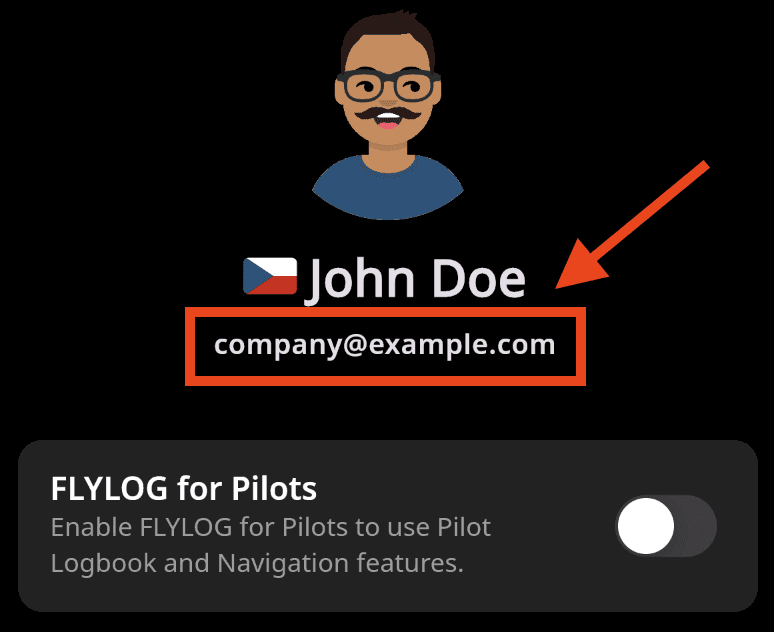
Subscription Email Address
The email address associated with your account is displayed in the Admin section, directly below your name.
Cancel Subscription & Close Business Account
Only the Account Administrator can cancel a Business subscription and close the organization.
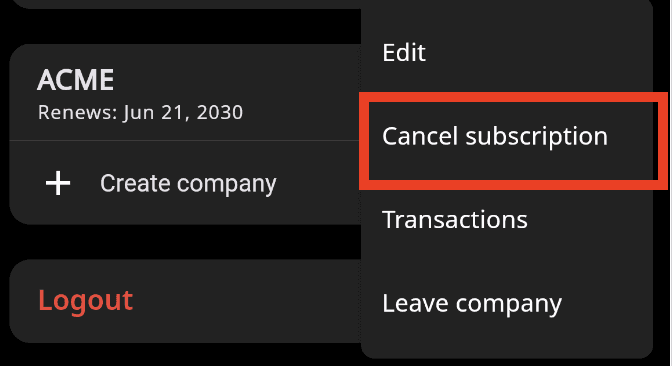
If you are not an Admin, the Cancel Subscription option will not be available. Instead, you will see Leave Company, which removes only your personal access to the Business account. The organization's subscription and data remain unaffected.
Business subscriptions cannot be paused.
When you cancel your subscription:
Your subscription remains active until the end of the current billing cycle.
Your Business account becomes inactive once the subscription expires.
Your data is retained for 30 days after the subscription expires.
After the 30-day retention period, your Business account and all associated data are permanently deleted and cannot be recovered.
Before You Cancel
Before cancelling your subscription, we recommend that you:
Ensure there are no scheduled flights, reservations, or maintenance tasks planned beyond your subscription expiry date.
Notify your customers and team members if they use your reservation system.
Export and save any records, reports, and documents you may need in the future.
How to Cancel Your Subscription
Mobile App
Sign in as the Admin.
Tap your profile icon in the top-left corner.
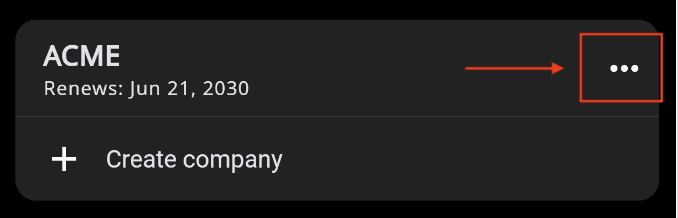
Scroll down to your company section.
Open the ⋯ menu.
Tap Cancel Subscription and confirm your choice.
Web App
Sign in as the Admin.
Click your profile icon in the top-right corner.
Scroll down to your company section.
Open the ⋯ menu.
Click Cancel Subscription and confirm your choice.
💡 Note: Selecting Leave Company instead will only remove your access to the Business account. It does not cancel the organization's subscription or close the account.
Read the full text of the Terms of Use: https://www.flylog.io/terms-of-use/